
Export your flowcharts to LibreOffice
With QALITEL logigramme ProAd
Writer export
Export your flowcharts and processes directly into LibreOffice Writer. Your Writer document updates automatically whenever you change your flowchart !
Calc export
Export your flowcharts and processes directly into LibreOffice Calc. Your Calc sheet updates automatically whenever you change your flowchart !
Impress export
Export your flowcharts and processes directly into LibreOffice Impress. Your Impress presentation updates automatically whenever you change your flowchart !
Export a flowchart to a LibreOffice suite file
In its ProAd version, QALITEL logigramme Fullweb lets you export your flowchart to a LibreOffice file (Writer, Calc and Impress).
Each time you export, a file (.odt, etc. depending on the case) is generated with a live link pointing to your online flowchart. All you have to do is download this Writer, Calc or Impress file to your computer.
A live link is created between your LibreOffice document and your flowchart. So if you edit your flowchart online using QALITEL logigramme (https://www.logigramme.io), the next time you open the LibreOffice document you exported earlier, it will automatically update the flowchart(s) it contains !
You can edit your flowchart from either https://www.logigramme.io (All copies of your Office document will be updated)
Or from your exported and downloaded LibreOffice document: you can open the dynamically embedded flowchart directly in QALITEL logigramme by holding the Ctrl key and left-clicking your mouse (Ctrl + left click).
Since you will have edited the source or reference flowchart, all copies of your LibreOffice document will be updated.
In your LibreOffice document, you can resize this flowchart using the resize handles provided, or via the image properties window. You can personalise the document by saving it under another name. You can select the flowchart, copy it (Ctrl+C) and paste it (Ctrl+V) into any other LibreOffice document while keeping this live link.
Automatic export
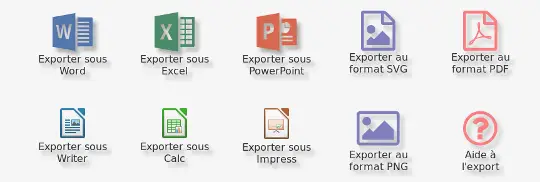
It could not be simpler: in the export screen, choose the file type you want to export to, and QALITEL logigramme automatically generates the file (Writer, Calc, etc.) containing your flowchart.
See the example below with Writer. In this case, your LibreOffice document contains only one flowchart. If you want your LibreOffice document to contain several flowcharts, this is perfectly possible, as explained below.
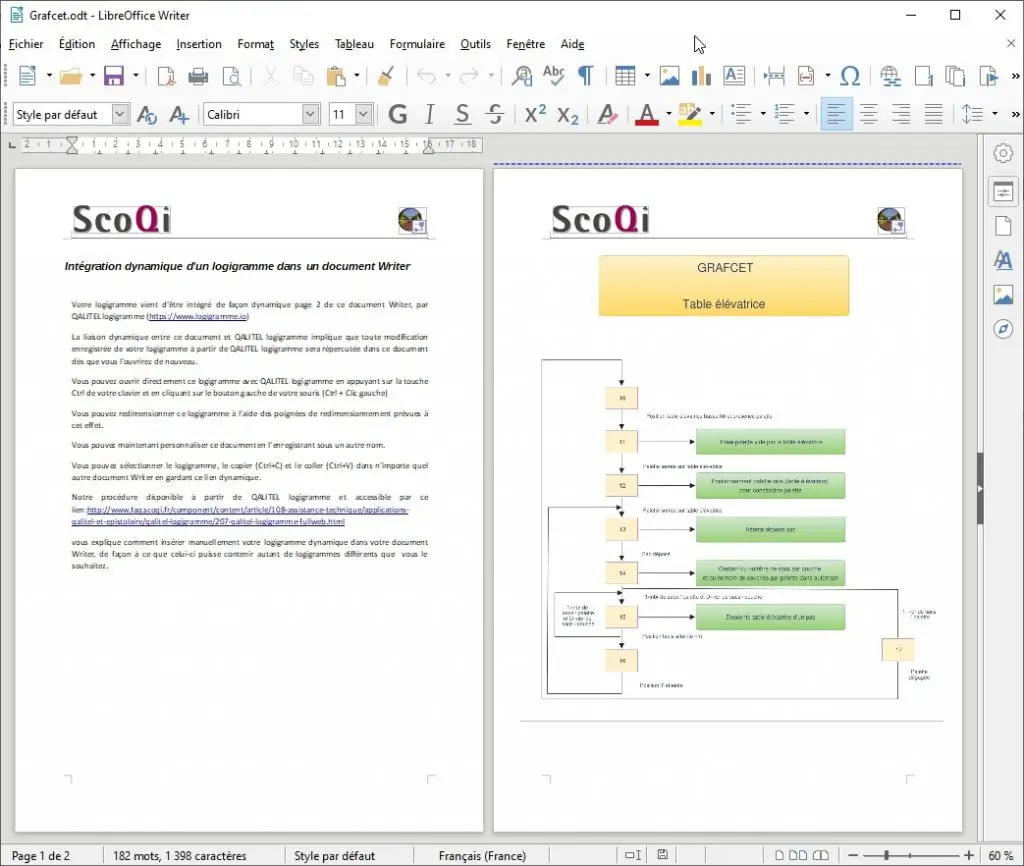
The procedures below explain how to manually insert your dynamic flowchart into your LibreOffice document, so that it can contain as many different flowcharts as you like.
QALITEL logigramme and the LibreOffice suite — example with Writer
This procedure applies to Writer, Calc and Impress, and consists of 4 steps.
Copying your flowchart’s share link
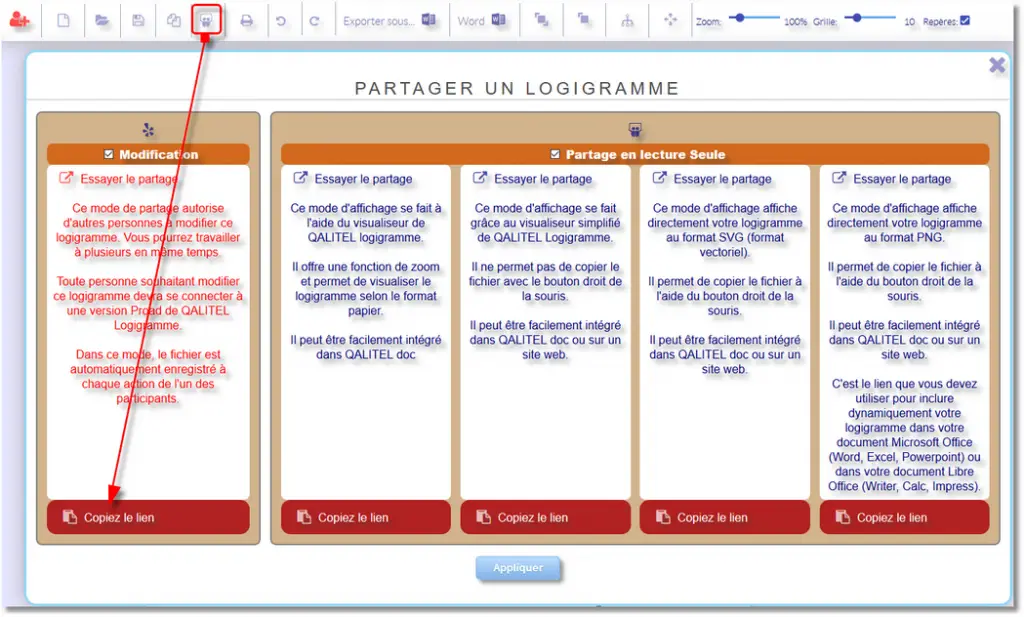
In QALITEL logigramme, click the “Share” icon to copy your flowchart’s share link, as shown in the screenshot below.
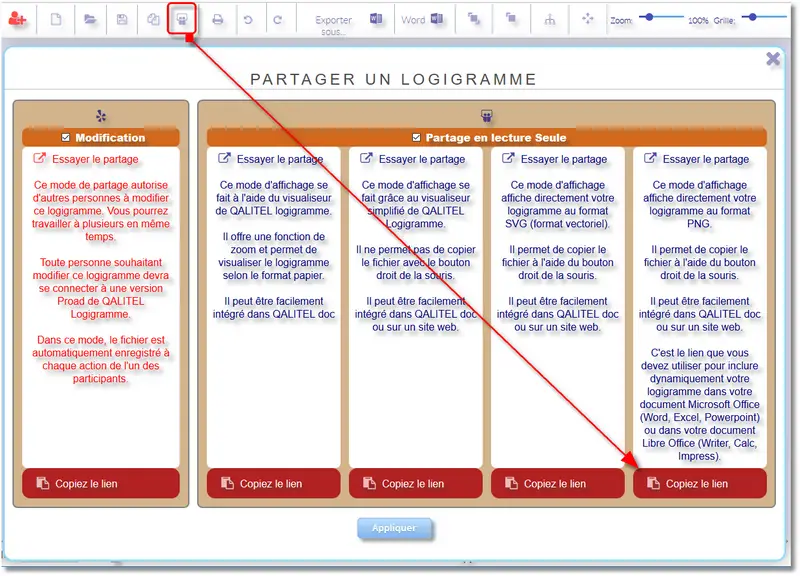
Be sure to copy the link from the 4th column (under “Read-only sharing”), which corresponds to the .PNG image of your flowchart — the only one that can be embedded in OpenOffice and LibreOffice suite software.
Opening the image insertion window
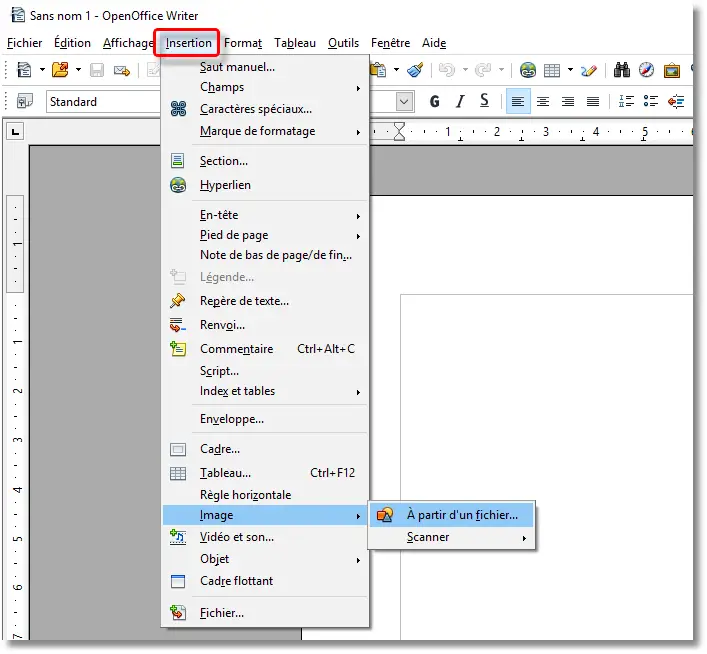
Once the share link is copied to the clipboard, open your OpenOffice / LibreOffice application and follow the steps below: click the “Insert” menu, then the “Image” submenu, and select the “From a file” option.
Pasting the link
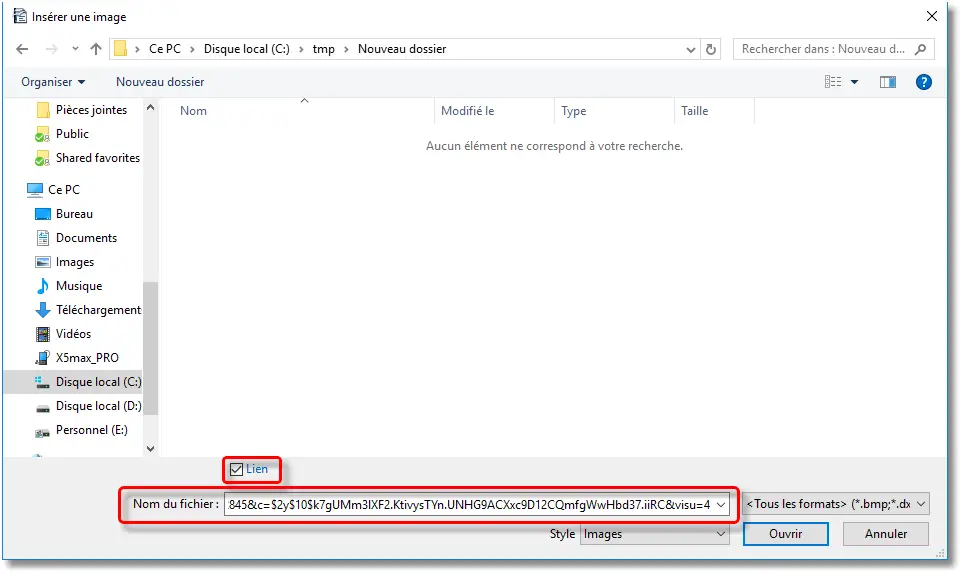
Paste the link from the clipboard into the “File name” field (CTRL-V or right-click “Paste”).
Inserting the image
Make sure the “Link” box is ticked. This keeps the link between your flowchart and the image embedded in the OpenOffice/LibreOffice application. So if you update your flowchart in QALITEL logigramme, it will be automatically refreshed the next time you open the OpenOffice/LibreOffice file.
Opening the flowchart from the Writer document
Earlier, we saw how to embed the flowchart in Writer (the procedure is valid for the other suite programs). You can then set up a hyperlink on the image so that the user can click and go straight to editing the flowchart in QALITEL logigramme.
For editing access to work, the user must have a ProAd edition of QALITEL logigramme and be logged in; otherwise they will be asked to enter their credentials. For a user without the ProAd edition, or who is not logged in, the flowchart will remain read-only.
The procedure is as follows:
Copying the “Edit” share link of your flowchart
To do this, in QALITEL logigramme, click the “Share” icon to copy the “Edit” share link of your flowchart, as shown in the screenshot below:
Creating the hyperlink in Writer
Then open Writer and your document to access your flowchart. As shown in the screenshot below, select the image by clicking once on it, then click the “Links” button to open the hyperlink insertion window. Paste the previously copied link into the “Target” line, confirm with “Apply”, and save your document.
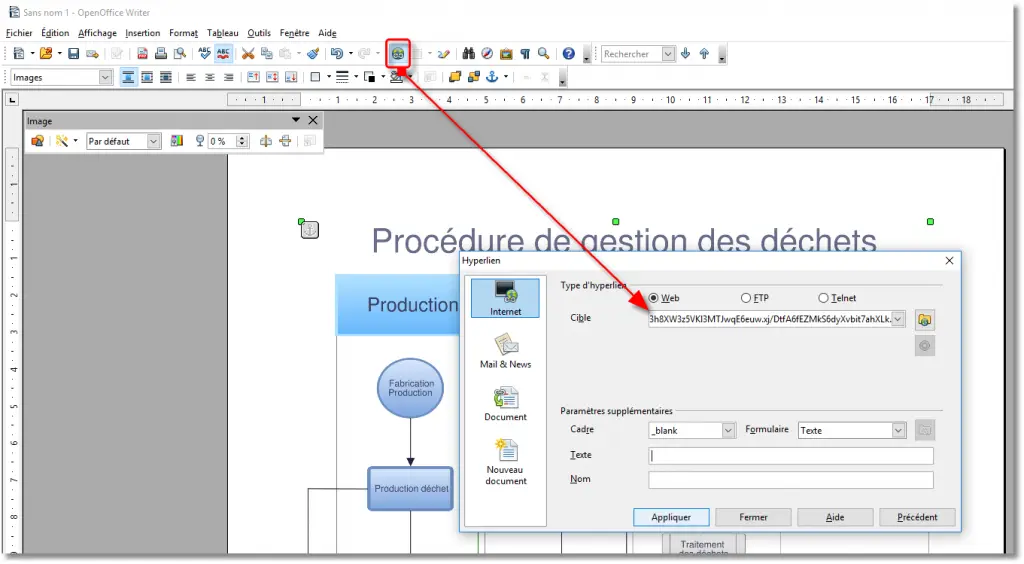
Then, when you open your Writer document, you will need to hold the “Ctrl” key and click the image to open the flowchart for editing in QALITEL logigramme (subject to the conditions stated above).
Warning message when opening the Writer document
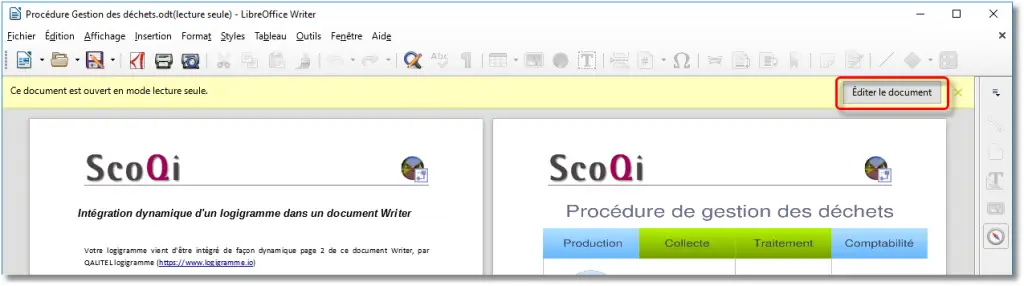
Opening a document that references a web page — which is the case when a flowchart is embedded in Writer (per the procedures described above) — is usually displayed by Writer in “Protected View”. You then get a yellow bar with an “Edit Document” button, letting you switch the document from “Read-only” to “Editing” mode.
Your flowcharts in LibreOffice, automatically up to date
LibreOffice and Microsoft Office export is part of the ProAd edition, available for purchase or monthly rental.