
Export your flowcharts to PNG and SVG
Available from the Pro edition of QALITEL logigramme
PNG export
Export your flowchart as a PNG image, a web standard, ideal for embedding in a document or a page.
SVG export
Export your flowchart as SVG, a vector format that can be enlarged or reduced with no loss of quality whatsoever.
Export a flowchart to a PNG file and an SVG file
Simply choose the “Export to PNG” or “Export to SVG” option in the export screen, and QALITEL logigramme automatically generates a file with the same name as your flowchart, then offers to download it once created on the server.
You can generate these files as many times as you like.
The PNG format
This image file format has become a web standard, replacing the GIF format.
It allows the creation of files much smaller than GIF, and often than JPG, with — as with GIF — the option to choose a transparency colour.
For aesthetic reasons, QALITEL logigramme generates your PNG file on a white background.
If you want to make this white background transparent, you can easily do so with a slightly advanced drawing program.
We recommend the FREE software GIMP, which works a bit like Adobe Photoshop and has little to envy it for non-professional use (well, almost).
It is available in English and installs on Windows, Linux and macOS.
Below, an example of a PNG file created by QALITEL logigramme
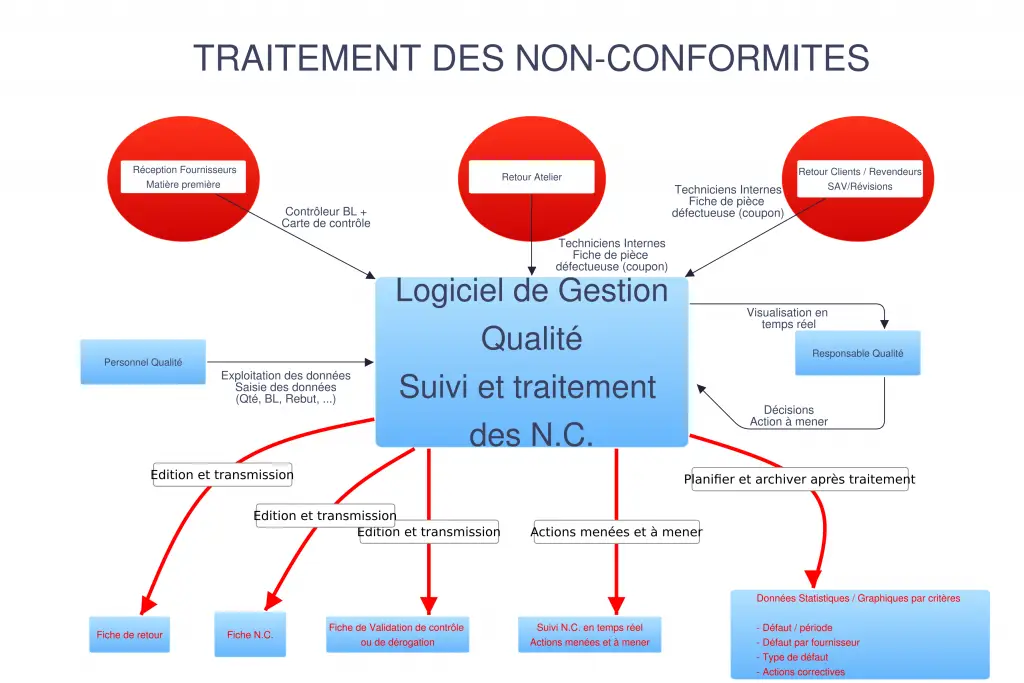
The SVG format
The SVG file format is a vector format.
Its great strength is that it can be enlarged or reduced with no loss of quality (no pixelation).
Fairly small in size (if you edit it, you will see it is a text description file), it is notably understood by GIMP, described above.
It is an ideal format for a website, since you can resize it without any loss.
Below, an example of a flowchart in SVG format
Export your flowchart as an image, in one click
PNG and SVG export is available from the Pro edition of QALITEL logigramme.